Help 🧩
Description: Help widget harbours all information on how to use thought jumper, how to add/remove widgets, what keyboard shortcuts and voice commands can make your life easy.
Every widget has a help icon that shows up on hover, and can show details on how to use a widget
Usage Instructions 📚
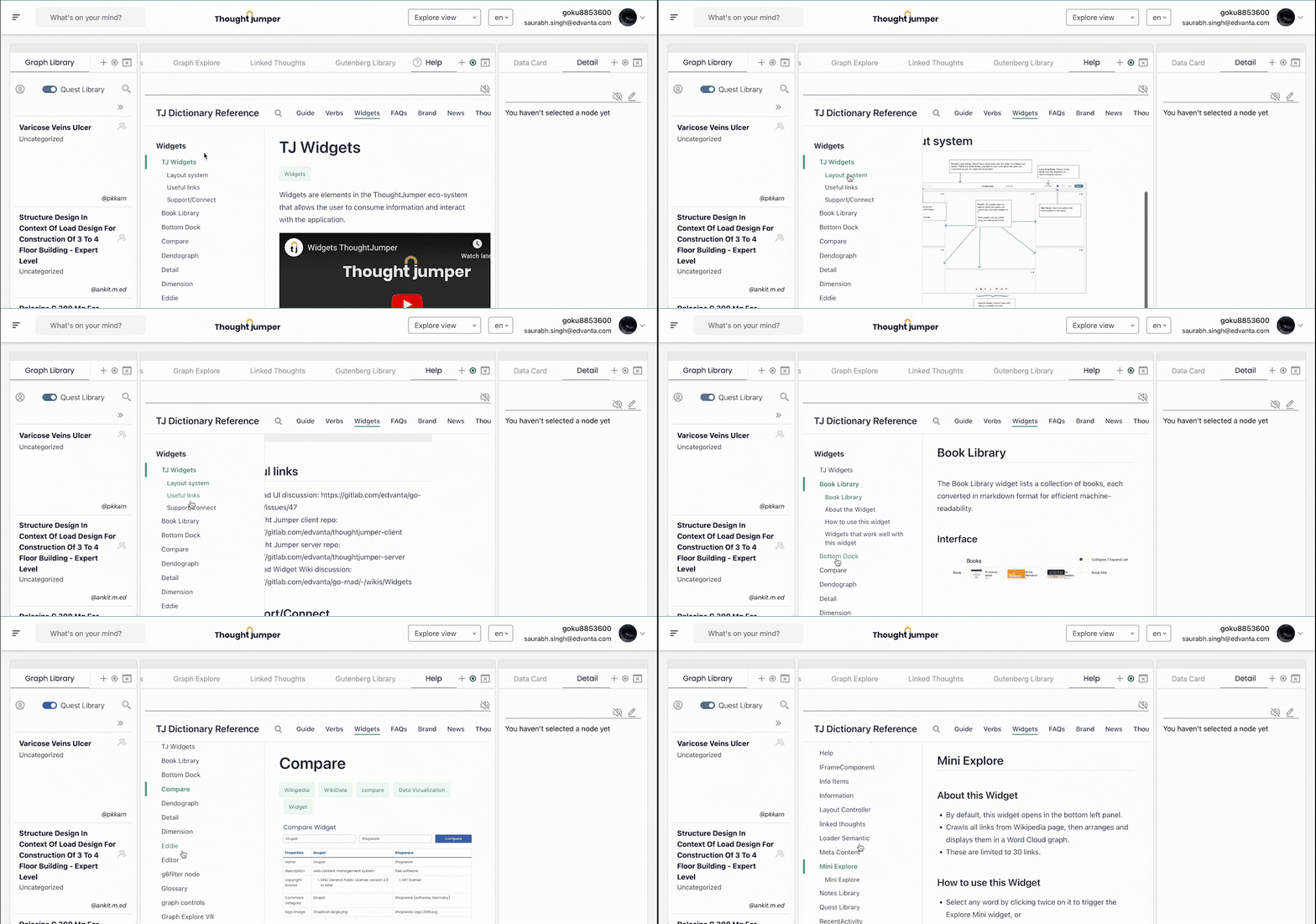
Simply click on the question mark icon that appears when you hover on any widget's title.
Node Operations Keyboard Shortcuts
- Node Focus -> Alt+Shift+1
- Explore -> Alt+Shift+2
- Add Nodes -> Alt+Shift+3
- Add RelationShips -> Alt+Shift+4
- Delete Notes -> Alt+Shift+5
- Highlight & Select -> Alt+Shift+6
- Fetch Thoughtmap Opton -> Alt+Shift+7
- Expand/Collapse Thoughtmap -> Alt+Shift+8
- Hide Related Nodes Opton -> Alt+Shift+9
- Clear Canvas on click -> Alt+Shift+0
- Trigger Function -> Alt+Shift+F
- Center Graph -> Alt+Shift+C
- View Graph Settings -> Alt+Shift+V
- Add Properties -> Alt+Shift+P
- Logical search -> Alt+Shift+L
Note: Following keys are now deprecated and may not work
Widget Keyboard Shortcuts
- Book Library -> alt+b
- Canvas View -> shift+c
- Detail -> alt+d
- Dendograph -> alt+o
- Editor -> alt+e
- First View -> shift+f
- Graph Explore -> alt+g
- Graph Controls -> alt+shift+g
- Gutenberg Library -> alt+u
- Linked Thoughts -> alt+l
- Mini Explore -> alt+m
- Notes Library -> alt+n
- Quest Library -> alt+q
- Recent Activity -> alt+a
- Related Thoughts -> alt+r
- Recent events -> alt+shift+r
- Snippet -> alt+s
- Skill graph -> alt+shift+s
- Second View -> shift+s
- Thoughtmap -> alt+t
- Thoughtverse -> alt+shift+t
- Thoughtverse alt -> alt+shift+a
- Thoughtverse Controls -> ctrl+shift+f
- Treasure Marker -> alt+v
- Thought Markdown -> alt+shift+o
- Third View -> shift+t
- Twitter feed -> alt+f
- Visited Graph VR -> alt+shift+v
- Visited Graph Alt -> alt+ctrl+v
- WikiData Card -> alt+w
- 3D Models -> alt+3
Group Operations Keyboard Shortcuts
- Remove -> alt+ctrl+1/Command+x
- Create Category alt+ctrl+2
- Create Statement alt+ctrl+3
- Smart Query alt+ctrl+4/Command+q
- Create Hull lt+ctrl+5
How to use Voice commands
- Go on Mute -> To mute mic
- Save Current Thought -> Save current thoughtmap
- Start/Stop Thought recorder
- Edit Layout -> to Edit layout
- close edit layout -> close edit layout
- Resize layout -> Resize layout
- close Resize layout -> close Resize layout
- Start Camera -> Start the Camera
- Stop Camera -> to Stop Camera
- Start Screen Recorder -> Start the Screen Recorder
- Stop Screen Recorder -> Stop Screen Recorder
- switch to explore view -> Switch between lenses
- switch to author view -> Switch between lenses
- switch to Simplified view -> Switch between lenses
- switch to Reading view -> Switch between lenses
- switch to Canvas view -> Switch between lenses
- open sidebar -> to Open Sidebar
- close sidebar -> to Close Sidebar
- show widgetname -> Add a widget
- jump to next thought -> navigate next thought
- jump to previous thought -> navigate previous thought